Manevi Halka Get the appDownload

Step-by-step guide

One-Time Circle: how to organise a khatam, dhikr or du'a for an occasion

For a blessed night, Ramadan, a loved one who passed away or an occasion in your family, you may want to complete a khatam, recite dhikr and salawat or read du'as together with the people you love. In the app you create a one-time circle for this: you choose the goal, set the end date and send the link. Everyone reads or counts their own share in their own place. The app only shares out the parts and adds up the counts.

  • Set up in about 2 minutes
  • People without the app can join
  • Free

The whole flow in one go: create the one-time circle, choose the goal and the end date, write the dedication, start it and send the link.

In short

  1. In the app, open the Circles tab, tap the + button at the top right and tap the One-Time Circle card in the window that opens.
  2. Choose the goal: Quran Khatm, Dhikr / Salawat or Du'a / Surah. For a khatam, tap Shared pool for the distribution; for a shared dhikr count, tap Collective.
  3. Under End date, choose until when the circle will run.
  4. Give the circle a name, write the occasion in the Dedication (optional) box if you like and tap Create Circle.
  5. Start the circle with Start Now and send the link to your family and your WhatsApp group with Invite.
  6. Everyone reads or counts their share in their own place. People without the app join most circles in the browser. When the time is up, the circle closes and its summary stays in the app.
1
The person organising the circle

Set up the circle

A one-time circle is set up for one occasion: it has an end date, grows through an invite link, closes when its time is up and its summary stays in your archive. You do not need to set up a permanent group for it.

If you want a khatam that carries on every week as a family, a regular circle suits you better: Setting up a group khatam.

  1. 1

    Open a one-time circle

    Open the app and tap the Circles tab in the bar at the bottom. Tap the green + button at the top right.

    The Add Circle window slides down from the top. Tap the One-Time Circle card in the middle.

    If there is no + button at the top right, you have not entered your name in the app yet. Tap Start a one-time circle in the middle instead and type your name; the one-time circle form opens straight away and you carry on from the next step.

  2. 2

    Choose the type of goal

    The first screen asks What would you like to do? and shows the type cards. This guide covers these three cards; tap one and tap Continue:

    • Quran Khatm: a 30-juz khatam, or the juz you choose, is shared out among the people who join. This section follows this path.
    • Dhikr / Salawat: you set a target count for a dhikr or salawat. Everyone completes their own count, or the whole circle counts towards one total.
    • Du'a / Surah: you set a number of recitations for surahs and du'as such as Yasin, al-Ikhlas or al-Fatiha.

    For dhikr and du'a the second step is different; it is explained in the Dhikr, salawat or du'a goal section below. The steps after that are the same for all of them.

  3. 3

    Choose how the khatam is shared out

    If you chose Quran Khatm, Full khatm is already selected on the screen that opens: 30 juz, 604 pages. At the bottom, Distribution has two options; choose one and tap Continue again:

    • Shared pool: all the juz wait in a pool and everyone takes the juz they want. People can still join after the circle has started. Choose this for a khatam read with family and friends.
    • Auto-divide: the pages are divided equally among the people who joined. Joining closes the moment you start the circle, so everyone needs to have joined beforehand.

    Relatives without the app can join too: with Shared pool selected, they take a juz from the invite link in their browser and read their pages there.

    If only certain juz will be read instead of the whole Quran, use the Custom juz range option.

  4. 4

    Choose the end date

    Tap the End date box and choose until when the circle will run. The date is set two days ahead to begin with; you can choose any other date you like, such as a blessed night. Then tap Continue.

    If you want the circle to start on its own at a set time, tick the Set a start time (optional) box. If you leave it unticked, you start the circle yourself.

    The circle is deleted 24 hours after the end date. If you need more time, you can extend it later; see below.

  5. 5

    Name the circle and write the dedication

    Type a name in the Circle name box, for example “Laylat al-Raghaib Khatm”. If you leave it empty, the name will be Khatm Circle.

    In the Dedication (optional) box, write the occasion of the circle or who it is read for, for example “For the good of our family and the whole Ummah”. The dedication sits under the name on the circle screen. People who open the link in a browser see it as the largest heading on the page. You can also leave the dedication empty.

    Check the summary at the bottom and tap Create Circle.

    When you create your first circle, the Keep your circle safe window may appear once. If you link your account with Apple, Google or email, your circle stays with you even if you change phones. You can also tap Later.

  6. 6

    Start the circle

    The circle screen opens: the circle's name and dedication at the top, below them the Invite card and the Start Now button. If you chose Shared pool, or set up a dhikr or du'a circle, there is no need to wait. Tap Start Now, then tap Start Now once more in the window that opens.

    Nobody can take a juz or count before the circle starts. Once it has started, the invite link stays open and people who come later can still join.

    If you chose Auto-divide, share the link first and start once everyone has joined. When you start, a preview opens showing who will read which pages; you tap Confirm and Start to confirm once more.

  7. 7

    Send the link

    Once the circle has started, the invite card moves to the Circle tab. Tap Invite and send the link to your WhatsApp group, your family or anyone you like.

    The note under the card says what people without the app can do with this link. In a khatam with the shared pool it says: People without the app can take a juz from this link and read it.

    Keep your WhatsApp group. Share the link there; the app keeps track of who took which juz and how much has been counted, so you do not have to write a list.

    Send the link with the Invite button on this screen or with the share icon at the top right. Do not send only the invite code: people without the app can join in the browser only with this link.

2
The person organising the circle

Dhikr, salawat or du'a goal

If you tap the Dhikr / Salawat or Du'a / Surah card on the type screen, only the second step changes. The end date, name, dedication, starting and inviting work as above.

  1. 8

    Choose the dhikr and the target count

    On the Dhikr & Goal screen, tap one of the chips under the Add from presets heading, for example Salawat. The list also has Tawheed, Istighfar, Subhanallah and Alhamdulillah. You can pick one of the Names of Allah with the Names of Allah chip, or type your own dhikr in the Custom box.

    On the card of the dhikr you added, type the number in the Target box. Next to it there are two options:

    • Collective: the whole circle counts towards one total, for example 10,000 salawat together. The counts add up until the end date.
    • Individual: everyone completes the number you typed on their own, for example 100 each.

    People without the app can also add to the count from the link in their browser. This works only for dhikrs set to Collective, and only once the circle has started.

    More on counting and shared targets: Group dhikr and salawat.

  2. 9

    For a du'a or surah recitation

    If you chose Du'a / Surah, the ready list on the Du'a & Goal screen has Surah al-Fatiha, Ayat al-Kursi, Surah Yasin, Surah al-Ikhlas, Surah al-Mulk and Surah al-Fath. To add a du'a or surah that is not on the list, type it in the Custom box.

    Type the number of recitations in the Target box and again choose Collective or Individual. You decide how many will be read; for the tradition behind a number, ask a scholar where you live.

3
Everyone taking part

Join and complete your share

Everyone reads or counts their own share in their own place, at their own time. There is no need to gather. The app only shares out the parts, adds up the counts and shows what has been completed.

  1. 10

    If you have the app: join and take a juz

    When you tap the invite link, the app opens and shows the circle's card: its name, the dedication, the number of participants and the end date. Tap Join. If this is your first time, you only need to type your name; no email is asked for. If the link opens in the browser instead of the app, tap the Open in the app button at the bottom of the page; there are more details in the guide Joining a circle from an invite.

    In a khatam circle, tap a free juz in the Juz Pool section. If you tap Take whole juz, all 20 pages of that juz are yours. If you can read less, type the first and last page and tap Take this range.

    If the circle has not started yet, the screen says Opens when the admin starts it. The juz and the counting open up when the admin starts it.

  2. 11

    Read, then tap Complete

    The pages you took are on the Your Task card. Tap Read; the Quran opens at your first page.

    When you have finished reading, go back and tap Complete. Once you confirm in the window that opens, your pages count as read and are added to the circle's progress. Do this at least 6 hours before the end; pages that are not marked go back to the pool at that point.

    No need to find your mushaf: your pages open right in the app.

    If you marked them by mistake, open the Completed row; you can undo the mark from there.

  3. 12

    In a dhikr or du'a circle: count

    On the circle screen, the Dhikrs card (Du'as in a du'a circle) has a Count button next to each row. Tap it and the counter opens; every tap on the screen counts one.

    If you counted with prayer beads or from memory, add the number in one go with the Bulk Add button under the counter. Counts are saved on their own. For a Collective dhikr, the counter also shows the Circle total line.

  4. 13

    If you do not have the app: take a portion in the browser

    In a khatam with the shared pool, tapping the link opens the circle's page in the browser. The dedication is at the very top, and below it you see how many pages have been read.

    The Next portion card suggests a juz for you. Tap Take this. Choose how many pages you will read (5, 10, 15 or 20) and tap I confirm, I will take it. The Read now button opens the pages in the browser.

    It works even if your aunt does not have the app on her phone: she takes her juz and reads it with just the link, without opening an account.

    If the circle has not started yet, the page says so and refreshes on its own when the admin starts it.

  5. 14

    When you have read it, tap I finished it

    At the end of the pages there is the question Finished reading? and the I finished it button; tap it when you have finished reading. If you open the link again later in the same browser, the portion you took is on the Your portions card; the I finished it button is there too.

    You can type your name if you like; the others in the circle then see who took the portion. Your name is not required, and leaving it empty changes nothing.

    After taking a portion, save the link with the Copy link button that appears. If you want to come back from another phone or browser, use this link.

  6. 15

    If you do not have the app: add to the count in the browser

    When you open the link of a dhikr or du'a circle, the Recitations in this circle card appears in the browser. Every dhikr set to Collective has an Add to the count button next to it.

    Tap it and a large circle opens: every tap counts one, and the +33 and +100 buttons add in one go. When you have finished, tap Add my count; your count is added to the circle's total.

    Dhikrs set to Individual show For circle members instead of the button. You can count those only in the app.

4
The person organising the circle

As the time runs out and when the circle ends

The app also looks after the end of the circle: in a khatam it puts pages that were taken and not finished back in the pool on its own, and it adds up the counts until the end date.

As the end approaches

12 hours before the end, anyone who has not finished their share yet gets a reminder notification. In dhikr and du'a circles, this reminder goes to everyone taking part.

In a khatam, 6 hours before the end, pages taken in the app and not marked with Complete go back to the pool. Someone else can take them and read them; the person whose share was taken back is told in the app.

If you need more time, tap the Extend by 24 hours row on the Management card in the Circle tab. The end date moves 24 hours later; you can tap it again if needed.

When the circle ends

In a khatam, when all the pages have been read, Collective Progress reaches 100%. If there is time, you can open a new 30-juz khatam in the same circle with the New series button next to the Juz Pool heading. In dhikr and du'a circles, the counts keep adding up until the end date.

The circle is deleted 24 hours after the end date. Before it is deleted, a summary of the circle is saved for everyone who joined from the app, under Profile › My Library › Completed.

Pages taken in the browser count as read in the circle's progress the moment they are taken, and they do not go back to the pool. You can see who finished in the Joined from the web list on the Circle tab.

In a khatam set up with Auto-divide, the Your khatm is complete card appears on the circle screen once all the shares have been read. If someone cannot finish their share, the admin can open the remaining shares to the pool with the Open remaining to pool row on the Management card.

5
Examples

Which occasions?

A one-time circle can be set up for any occasion. A few examples: a khatam for a blessed night, Mawlid or Ramadan; a khatam or Yasin recitations for a relative who passed away; salawat with a prayer for the recovery of a loved one who is ill; a shared du'a for a family wedding, a newborn baby or someone going on Hajj.

The steps are the same for all of them. You only choose the goal, the end date and the dedication to suit that occasion.

For a loved one who passed away

When someone close to you passes away, you can complete a khatam for them together with the people you love. Give the circle a name, for example “Khatam for Ibrahim Khan”, and write a sentence such as “For our late father” as the dedication. Relatives who open the link in a browser see this dedication as the largest heading on the page.

Set the end date to a day when the family can read comfortably; the app does not suggest a particular day. Instead of a khatam you can also organise salawat or Yasin recitations: when you choose the type, tap the Dhikr / Salawat or Du'a / Surah card.

Everyone reads their own juz in their own place. The app only shares out the juz and shows which ones have been read.

For a blessed night, Mawlid and Ramadan

For a khatam read on a blessed night, for Mawlid or in Ramadan, set the end date to the day of that occasion, for example the evening of the blessed night. Write the dedication to suit the occasion too. While the dedication box is empty, it shows e.g. On the occasion of the blessed night.

If you are reading with a large community, you can open more than one khatam in the same circle with New series.

For a khatam that runs every day or every week through Ramadan, a regular circle suits you better: Setting up a group khatam.

Example: a Laylat al-Raghaib khatam

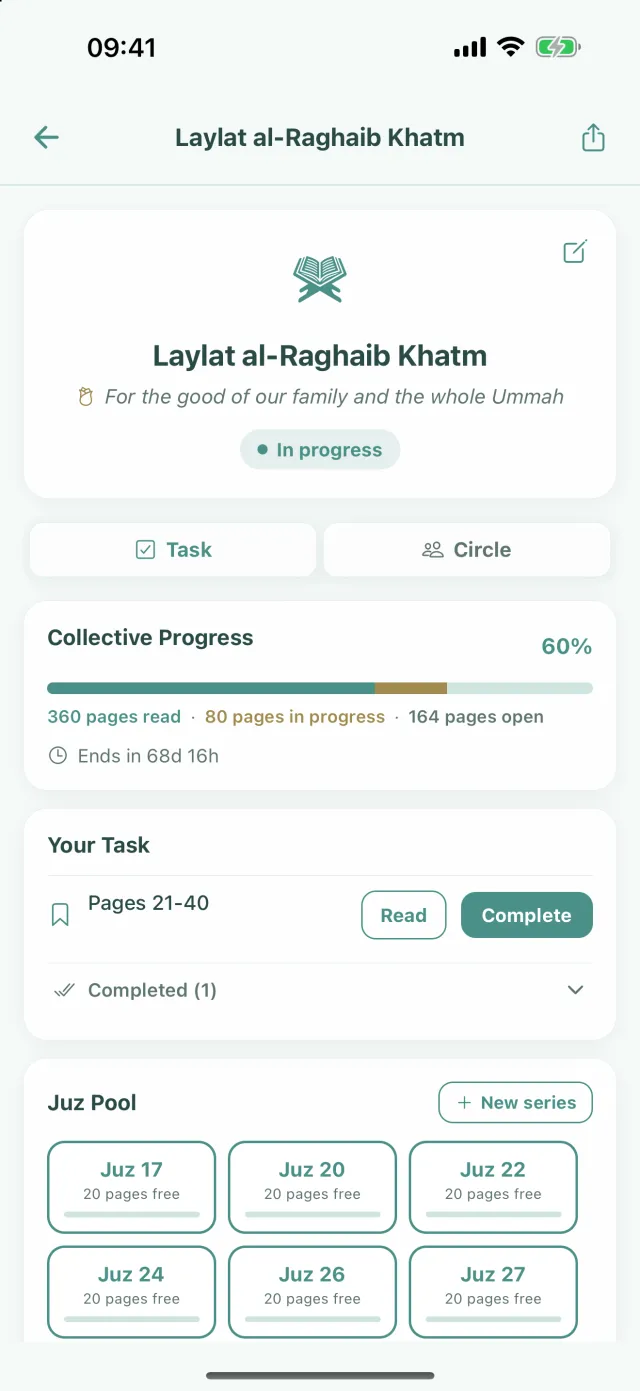
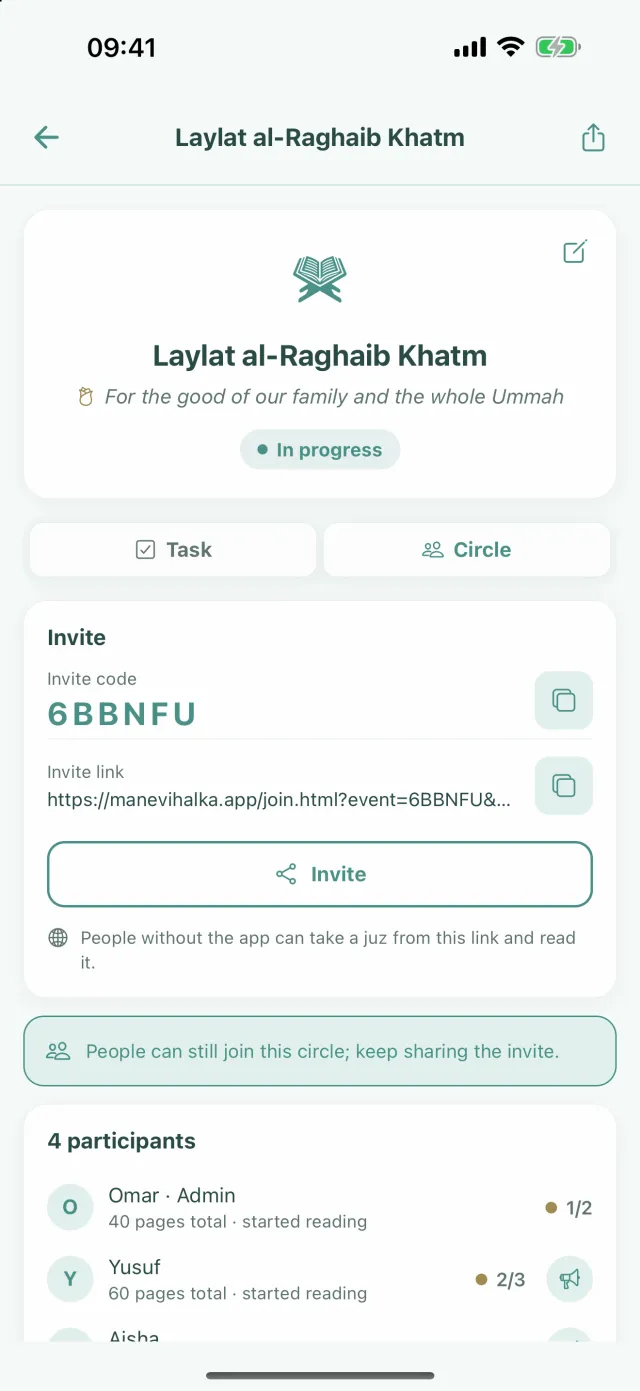
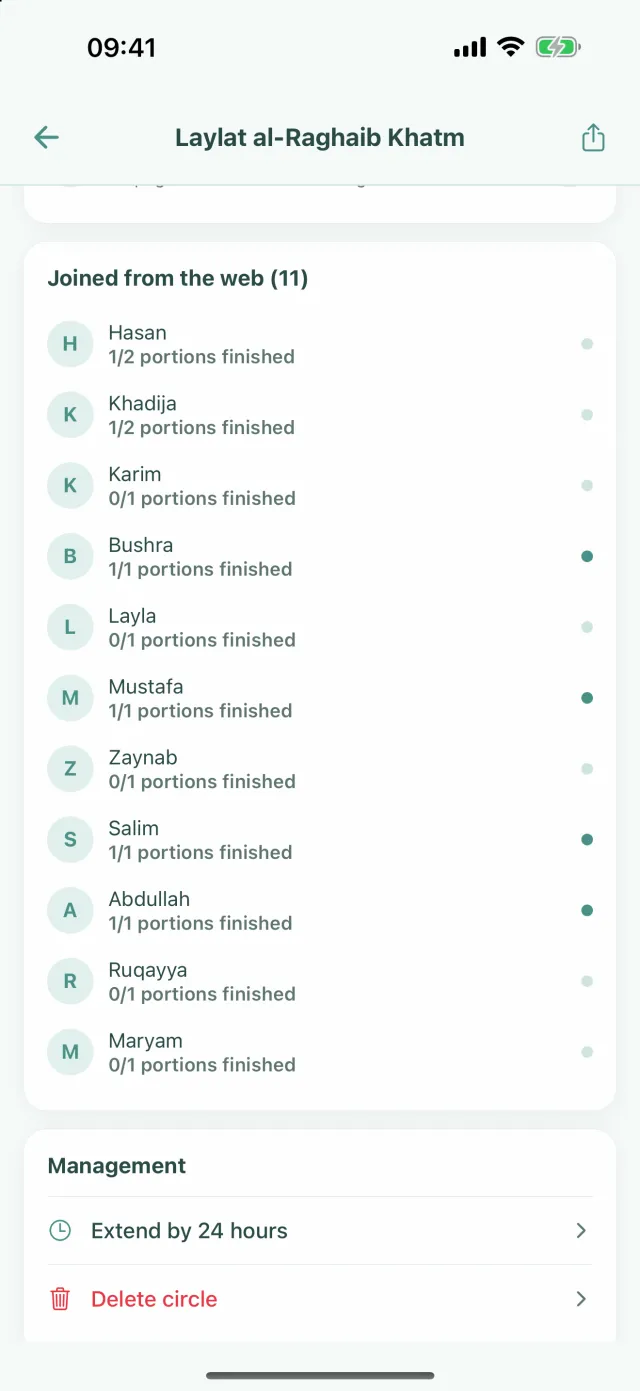
The screenshots below are from the app. The dedication says “For the good of our family and the whole Ummah”, the juz are taken from the shared pool, and some relatives have joined from the browser.

  • Laylat al-Raghaib Khatm: dedication line, Collective Progress at 60 percent, Pages 21-40 on the Your Task card and the Juz Pool
    Task tab: collective progress, your pages and the juz pool
  • The Circle tab of the same circle: invite code, invite link, Invite button and participants
    Circle tab: invite code, link and participants
  • Joined from the web list, and Extend by 24 hours and Delete circle on the Management card
    People who joined from the browser, and management

Frequently asked questions

How do I organise a khatam for an occasion?

In the Circles tab, tap the + button, then the One-Time Circle card and then the Quran Khatm card. Choose Shared pool for the distribution, set the end date, write the dedication if you like and tap Create Circle. Start it with Start Now and send the link. Everyone takes a juz and reads it in their own place.

What is the difference between a one-time circle and a regular circle?

A one-time circle is set up for one occasion: it has an end date, closes when its time is up and is deleted 24 hours later; its summary stays in the app. A regular circle is a lasting group with your family or community, where the khatam carries on with a new round every day or every week. More details: Setting up a group khatam.

Can people without the app join?

In most circles, yes. In a khatam with Shared pool selected, whoever taps the invite link takes a portion in the browser and reads the pages there. In dhikr and du'a circles, they can add to the count of dhikrs set to Collective from the browser. They do not open an account, and typing their name is optional too. In a khatam with Auto-divide, only the shares that were not finished in time can be taken in the browser; Individual dhikrs need the app.

How do I organise a khatam for a deceased loved one?

The steps are the same as for any one-time circle. Give the circle a name and write a sentence such as “For our late father” as the dedication; people who open the link in a browser see the dedication as the heading of the page. Set the end date to a day when the family can read comfortably. Everyone reads their own juz in their own place; the app only shares out the juz.

What if not all the juz are read before the khatam du'a?

The app does not decide this. In a khatam with the Shared pool, pages taken in the app and not marked Complete go back to the pool 6 hours before the end, so someone else can read them, and the admin can move the end 24 hours later. On reading the remaining juz after the du'a, ask a scholar you trust.

How do I set it up for a blessed night, Mawlid or Ramadan?

With the same steps. Set the end date to the day of that occasion, for example the evening of the blessed night, and write the dedication to suit it. If you are reading with a large community, you can open more than one khatam in the same circle with New series. For a khatam that runs every day or every week through Ramadan, a regular circle suits you better: Setting up a group khatam.

Is it free?

Creating and joining a one-time circle is free. With a free account you cannot create a new one-time circle until the one you created has been deleted; a circle is deleted 24 hours after its end date. There is no limit on joining.

Start your circle today

Download Manevi Halka for free, create your circle and share the invite link.

DownloadApp Store DownloadGoogle Play