
Step-by-step guide
How to set a group dhikr or salawat goal
You set up a dhikr goal in your circle, for example 1,000 salawat a day. Everyone recites in their own place, at their own time, and adds their count in the app. The app only adds up the counts; the circle's total shows on everyone's screen.
From the circle screen to the shared counter: Dhikr, Shared Pool, Salawat, start.
In short
- Open your circle, tap the + button at the bottom right and choose the Dhikr card.
- On the How should the dhikr goal work? screen, choose Shared pool: the circle gets one single counter.
- Under Presets, tap the Salawat row, type the target number and tap Add.
- Give the task a name and tap Start Shared Goal.
- Everyone taps the card on the task screen to count, or adds what they recited on their prayer beads with Bulk Add. The count is saved automatically.
- For one large total spread over several days, create a One-Time Circle, mark the dhikr as Collective and start the circle.
Set up the dhikr goal
A dhikr goal is set up inside a circle. If you do not have a circle yet, create one and invite the others with the first steps of the guide Setting up a group khatam.
-
1
Tap + on the circle screen and choose Dhikr
Open the Circles tab from the bar at the bottom and open your circle. In the Readings tab, tap the round + button at the bottom right.
The What kind of goal do you want to create? screen opens. Tap the Dhikr card under Shared reading.
In a circle you have just created, the Create a task button on the Your circle is ready card opens the same screen. The + button is visible to the circle's admin and moderators.
9:41My FamilyCreated 5 Oct 2026 • 5 membersReadingsMembers (5)QURAN READINGFamily Khatm30 juzActiveCancelStep 1What kind of goal do you want to create?Steps vary by goal type. Shared readingComplete one text togetherQuranKhatm or page goal JawshanRegular reading DhikrCount goal BookPage-goal trackingShared practicesEveryone continues their own practicePrayerChosen prayersMemorization and reviewYour own studySurah ReadingAl-Mulk, Al-Kahf, YasinShared supplicationRead the same oneBackStep 2 / 4How should the dhikr goal work?Choose how goals will be tracked.Same task for everyoneSame list, everyone counts their ownShared poolOne counter, all togetherJust for meOn your own, no one else seesContinue -
2
Choose Shared Pool
The app asks how the count should be kept. There are three options:
- Same task for everyone: everyone gets the same list, and everyone keeps their own count.
- Shared pool: the circle has one single counter. What everyone recites is added to the same total.
- Just for me: your list and your counts stay with you only.
For a group salawat, tap the Shared pool card, then tap Continue. Nobody has to report their count separately, and nobody has to add up the total by hand.
9:41BackStep 2 / 4How should the dhikr goal work?Choose how goals will be tracked.Same task for everyoneSame list, everyone counts their ownShared poolOne counter, all togetherJust for meOn your own, no one else seesContinueBackStep 3 / 4Select dhikrs to includeChoose the dhikr items and total counts that the whole circle will complete together. Asma ul-HusnaPresetsAsma ul-Husna99 beautiful names of Allah0/99Subhanallah33Alhamdulillah33Allahu akbar33Salawat100Istighfar100Tawheed100Hawqala100Add custom dhikr1 dhikr selectedContinueAllahumma salli ala Muhammad • 1000 -
3
Choose the dhikr and the target number
In the Presets section, tap the Salawat row. A window opens from the bottom. Tap the number and type the circle's shared target for one day, for example 1000. The counter starts again from zero every midnight. Then tap Add.
You can add other dhikr too: Istighfar, Tawheed, Asma ul-Husna or your own with Add custom dhikr. The ones you choose appear at the bottom of the list. Finish the list here: in a shared pool, dhikr cannot be added or removed after the task has started. When you are done, tap Continue.
The same window has a Time for this dhikr row; All day is selected by default, and this choice is separate for each dhikr. If you choose Morning, that dhikr is shown first until Dhuhr; at other times it is greyed out, but you can still count it.
9:41BackStep 3 / 4Select dhikrs to includeChoose the dhikr items and total counts that the whole circle will complete together. Asma ul-HusnaPresetsAsma ul-Husna99 beautiful names of Allah0/99Subhanallah33Alhamdulillah33Allahu akbar33Salawat100Istighfar100Tawheed100Hawqala100Add custom dhikr1 dhikr selectedContinueAllahumma salli ala Muhammad • 1000Salawatاللَّهُمَّ صَلِّ عَلَى مُحَمَّدٍ100Time for this dhikrAll dayMorningEveningMorning + EveningCancelAdd -
4
Name the task and start it
Type a name in the Task name box, for example “Friday Salawat”. Tap Start Shared Goal.
In the Success window, tap Go to task screen to open the task screen. The task is added to the circle's list; the others in the circle see it under Your Tasks on Home.
If you want to follow the circle without counting yourself, you can turn on Mentor Mode before you start.
9:41BackStep 4 / 4Name the shared goalReview and name the collective dhikr goal the circle will complete together. Task name e.g. Friday SalawatStart Shared GoalMentor ModeWhen enabled, no task will be assigned to you; you only follow the members' progress and continue managing the circle.My FamilyCreated 5 Oct 2026 • 5 membersReadingsMembers (5)DHIKRFriday SalawatDaily dhikr goalActiveQURAN READINGFamily Khatm30 juzActiveFriday SalawatDAY ENDS IN08h 01mtomorrow 00:00My TaskCircleاللَّهُمَّ صَلِّ عَلَى مُحَمَّدٍAllahumma salli ala MuhammadShared: 0 / 10000%Shared total: 0 / 1000SuccessGoal created. You can follow it from the task screen.OKGo to task screen
Recite your dhikr and add it
Everyone recites in their own place, at their own time. Nobody needs to gather to recite aloud together; the app only adds up the counts. If you have not joined the circle yet, tap the invite link first: Joining a circle from an invite.
-
5
Open the task and tap the counter
On Home, tap the card under Your Tasks. The task screen shows a card for each dhikr with the circle's count for the day underneath, for example “Shared: 840 / 1000”.
Tap the card and the counter opens. Every tap on the large circle in the middle counts one. The number inside the circle is the circle's total; underneath it says Circle total.
There is no save button. What you count is saved automatically, and Saved appears at the bottom.
No need to ask “how many are we at?” in the evening: the shared number updates on the others' screens too.
If you tapped by mistake, tap the Undo button at the bottom; the last count is removed.
9:41Assalamu alaykum,Aisha Your TasksCircle: My FamilyFriday SalawatDaily dhikr goal · 80%Circle: My FamilyFamily KhatmJuz 2Friday SalawatDAY ENDS IN08h 01mtomorrow 00:00My TaskCircleاللَّهُمَّ صَلِّ عَلَى مُحَمَّدٍAllahumma salli ala MuhammadShared: 840 / 1000أَسْتَغْفِرُ اللَّهَAstaghfirullahShared: 360 / 50080%Shared total: 1200 / 1500اللَّهُمَّ صَلِّ عَلَى مُحَمَّدٍ MeaningAllahumma salli ala MuhammadAll day840/ 1,000 Circle totalTap = +1UndoBulk Add -
6
Recited on your prayer beads? Add it in one go
If you recited the dhikr on your prayer beads or from memory, you do not need to tap one by one. Tap the Bulk Add button under the counter. A long press on the counter opens the same window.
Tap +10, +33 or +100, or type your own number in the Amount box and tap Add. The bar at the bottom of the task screen shows the day's shared total as a percentage.
The shared counter starts again from zero every day at midnight, in your own time; it is a daily goal. If you want one large total spread over several days, use the one-time circle below.
9:41اللَّهُمَّ صَلِّ عَلَى مُحَمَّدٍ MeaningAllahumma salli ala MuhammadAll day840/ 1,000 Circle totalTap = +1UndoBulk AddFriday SalawatDAY ENDS IN08h 01mtomorrow 00:00My TaskCircleاللَّهُمَّ صَلِّ عَلَى مُحَمَّدٍAllahumma salli ala MuhammadShared: 940 / 1000أَسْتَغْفِرُ اللَّهَAstaghfirullahShared: 360 / 50087%Shared total: 1300 / 1500Bulk Add+10+33+100AmountAddCancel
A one-time goal for an occasion
If you want a large total that runs until a certain date, such as salawat on a blessed night or for someone who passed away, you do not need to create a permanent circle.
-
7
Choose Collective counting in a One-Time Circle
In the Circles tab, tap the + button at the top right and choose the One-Time Circle card. Choose Dhikr / Salawat as the type and tap Continue.
If you do not see + at the top right, your name is not saved in the app yet. Tap the Join with an invite code button on the same screen and type your name. Then go back; the + button appears.
At the Dhikr & Goal step, tap the Salavât-ı Şerîfe chip (the salawat). Type the circle's total target in the Target box, for example 10,000. Then tap Collective.
For a dhikr set to Collective, the whole circle counts towards one target and the counts add up until the end date. If you choose Individual, everyone completes their own target.
In the next steps, choose the end date, give the circle a name and tap Create Circle. On the circle screen, share the invite link with Invite.
Counting opens when the circle starts. Once the others have joined, tap Start Now on the circle screen and tap Start Now again in the window that opens. If you like, tick Set a start time (optional) when you set it up; the circle then starts on its own at the time you choose.
Whoever taps the link you share with the Invite button on the circle screen can add to the count from the page that opens in the browser, even without the app. This works only for dhikr set to Collective, and only after the circle has started.
For details on the date, the invite and the dedication: One-time circle.
9:41One-Time CircleDhikr & GoalWhich dhikr, how many per person?ContinuePeople without the app can add to the shared count from the web.Add from presetsSalawatTawheedIstighfarSubhanallahAlhamdulillahNames of AllahCustomDhikr name (e.g. Salawat)CountAddSalawatTarget1000 IndividualCollective -
8
For reading Yasin or Ikhlas, choose the Du'a / Surah type
At the first step of the One-Time Circle, choose Du'a / Surah as the type. The ready list at the Du'a & Goal step includes Yâsîn Sûresi (Surah Yasin) and İhlâs Sûresi (Surah al-Ikhlas). Type the total number the circle will read in the Target box and choose Collective.
As people read, each adds what they read to the counter; the total shows on everyone's screen. You decide how many times it will be read; for the tradition behind a particular number, ask a scholar where you live.
If you want to mark days, not count
For things like reading the same surah or du'a every day, or keeping track of the prayers together, there is a daily mark instead of a counter.
-
9
Look at the Shared practices section
When you tap the + button on the circle screen, the screen that opens has the Shared practices section at the bottom: Surah Reading (such as al-Mulk, al-Kahf, Yasin), Shared supplication and Prayer.
No count is kept here: everyone carries on with their own worship and marks what they did that day. The circle's admin sees this section.
What it looks like in the app
These screenshots are from the app itself.
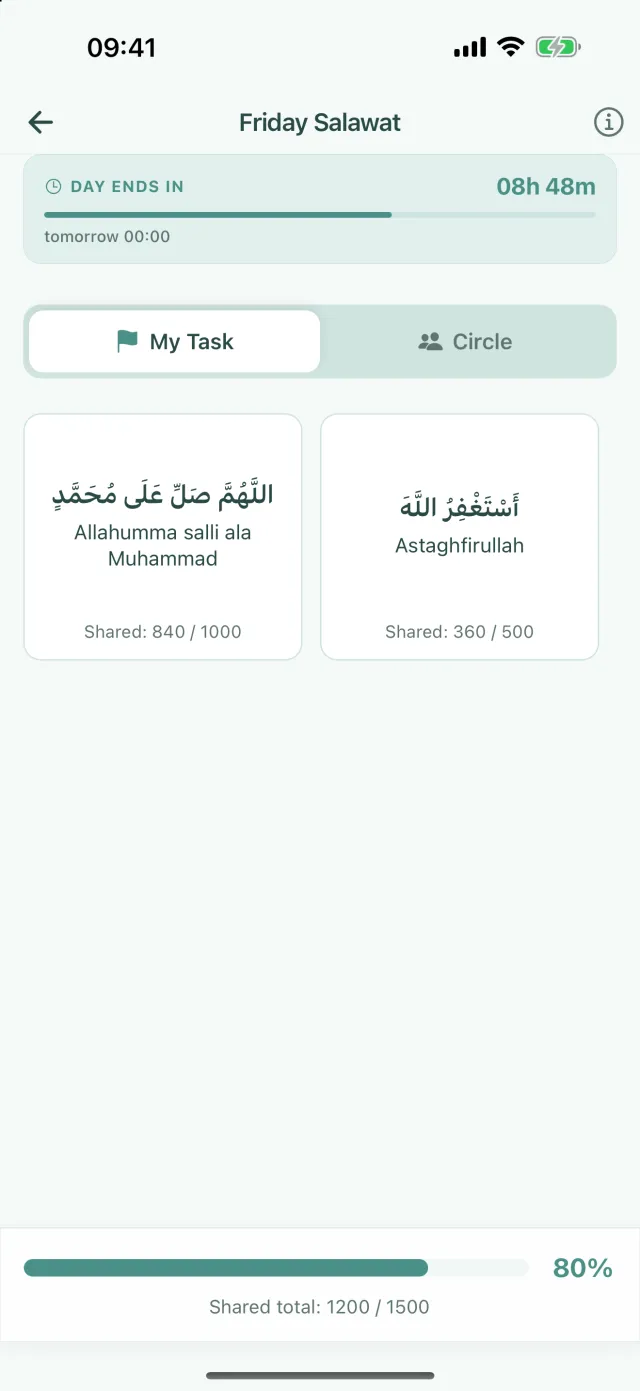
Task screen: shared counts and the day's total 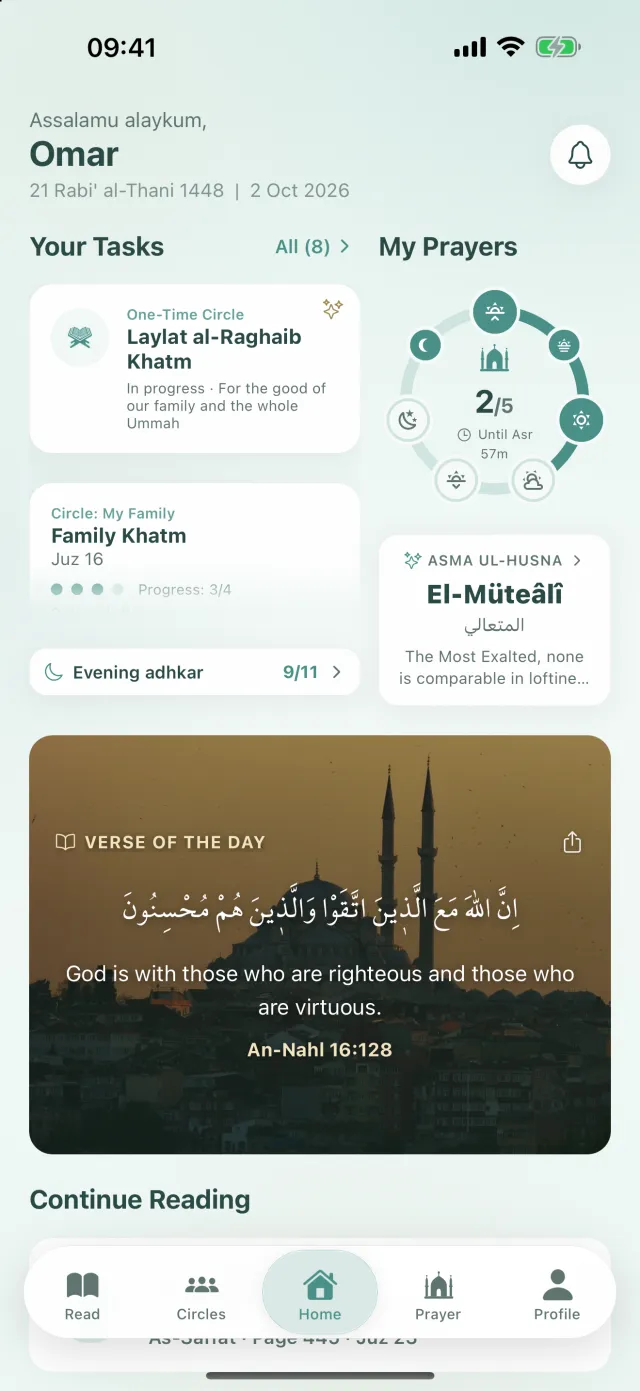
Home: your task cards 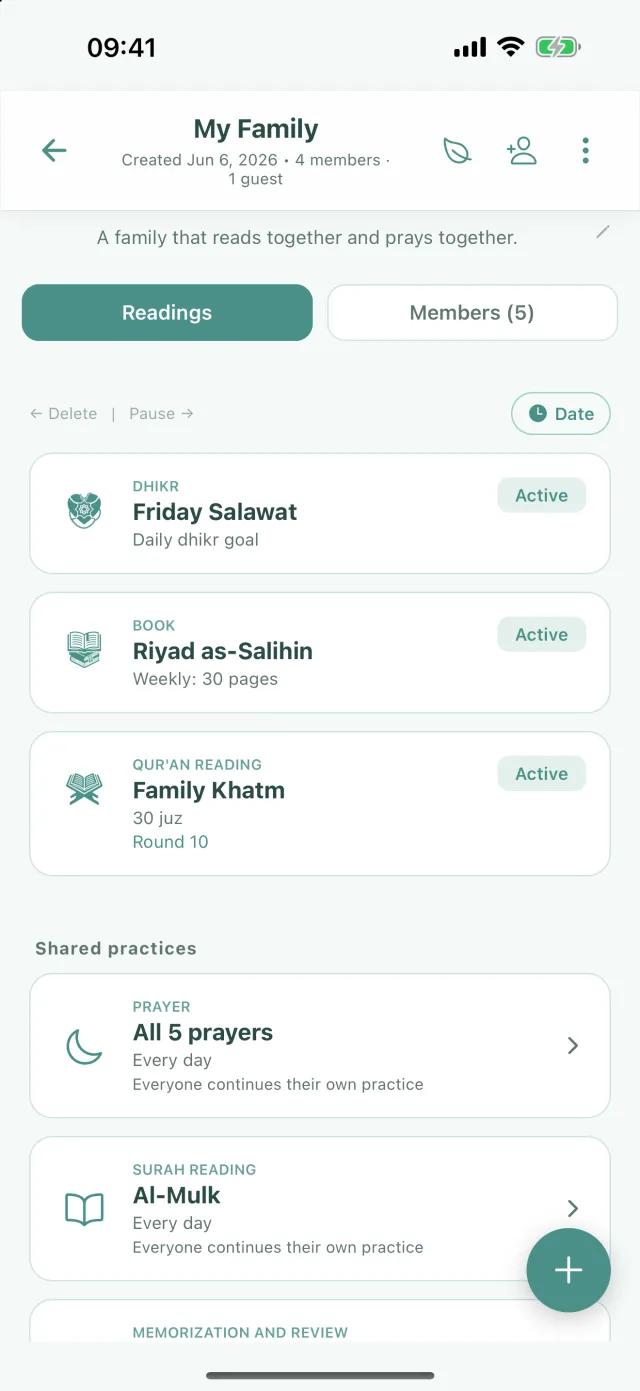
Circle screen: tasks and the + button at the bottom right
Frequently asked questions
How do I set a group salawat goal?
In your circle, tap the + button at the bottom right, choose the Dhikr card and pick Shared pool. Tap the Salawat row, type the target number, name the task and start it. For a goal that runs until a certain date, create a One-Time Circle, mark the dhikr as Collective and then start the circle. Creating a circle, setting up a dhikr goal and joining are free. With a free account you can manage one circle of your own at a time; there is no limit on joining other people's circles.
Does everyone count on their own, or on one shared counter?
You choose. With Same task for everyone, everyone counts the same list on their own. With Shared pool, the circle has one single counter and what everyone recites is added to the same total. In a one-time circle this choice is separate for each dhikr: Individual or Collective.
Does the shared counter start again every day?
The shared pool in a regular circle is a daily goal: the counter starts again from zero every midnight, in each person's own time. In a one-time circle, the count of a dhikr set to Collective adds up from the moment the circle starts until the end date.
Can we read Yasin or al-Ikhlas a set number of times together?
Create a One-Time Circle, choose Du'a / Surah as the type and add Yâsîn Sûresi (Yasin) or İhlâs Sûresi (al-Ikhlas) from the ready list. Type the total number in the target box and choose Collective. You decide how many times it will be read; for the tradition behind a particular number, ask a scholar where you live.
How do I add what I have recited?
On the task screen, tap the dhikr's card; every tap on the counter counts one. If you recited on your prayer beads, you can add a number such as +33 or +100 in one go with Bulk Add. There is no save button; the count is saved automatically.
Can people without the app add to the count?
In a one-time circle, yes: once the circle has started, whoever taps the link shared with Invite on the circle screen can add to dhikr set to Collective from the page that opens in the browser. For dhikr set to Individual, you need the app. Joining a dhikr goal in a regular circle also needs the app.
Do we have to gather and recite aloud together?
No. Everyone recites in their own place, at their own time. The app only adds up the counts and shows the circle's total.
Start your circle today
Download Manevi Halka for free, create your circle and share the invite link.