Manevi Halka Get the appDownload

Step-by-step guide

How to set up a group khatam (khatm) and share the juz

First you create a circle, a group for your family or your mosque. Then you start a khatam in that circle. The app decides who reads which juz, and when the week is over, the next juz arrive on their own.

  • Set up in about 2 minutes
  • No email or password
  • Free

The whole flow in one go: create the circle, choose Quran, start.

In short

  1. In the app, open the Circles tab and tap Create a circle. Type your name and the circle's name, then tap Create Circle.
  2. Tap Share invite link and send the link to your family or your WhatsApp group. Anyone who taps the link then taps Join and joins the circle.
  3. Once everyone has joined, tap Create a task and choose the Quran card.
  4. Juz khatm, a full khatam, one round a week and 1 juz per person are already set. Tap Continue three times.
  5. Give the task a name, check in the preview who starts with which juz, and tap Start Task.
  6. Everyone reads their own juz and marks it as read. When the week is over, the next juz are handed out on their own.
1
The person creating the circle

Create your circle

A circle is the group you worship with: your family, your friends or the people at your mosque. The khatam is set up inside this circle.

  1. 1

    Start a new circle from the Circles tab

    Open the app and tap the Circles tab in the bar at the bottom. Tap the Create a circle button on the screen.

    If this is your first circle, the app only asks for your name. The others in the circle will see you by this name. No email, password or phone number is needed.

    If you do not see this button, because you have already joined or created a circle, tap the + button at the top right and choose Regular Circle in the window that opens. With a free account you can manage one circle of your own at a time.

  2. 2

    Give your circle a name

    Type a name in the Circle Name box, for example “My Family” or “Friday Circle”. The description is optional. Then tap Create Circle.

    If you have not linked your account yet, the Keep your circle safe window appears once with your first circle. If you link it with Apple, Google or email, your circle stays with you even if you change phones. You can also tap Later and carry on.

    Detailed Progress Tracking can only be chosen when you create the circle. If you turn it on, you as the admin see each member's daily progress. The members do not.

  3. 3

    Invite your brothers and sisters

    The circle screen shows the Your circle is ready card. Tap Share invite link and send the link to your WhatsApp group, your family or anyone you like. When someone taps the link, the circle's invite card opens on their phone; they tap Join and they are in. If the link opens in the browser instead of the app, they tap the Open App button on that page.

    Keep your WhatsApp group. Share the link there and let the app keep track of who reads which juz.

    Invite people first, then start the khatam. The juz are handed out to whoever is in the circle at the moment you start it; anyone who joins later gets a share in the next round.

  4. 4

    Or invite with a code or a QR code

    At the top right of the circle screen there are three icons. Tap the middle one, the person icon with a plus, and the Invite to Circle window opens: a six-character short code, the invite link and a QR code. You can read the code out over the phone, or show the QR code on a screen at the mosque.

    Someone without the app taps the link and downloads the app from the page that opens. Then they tap Join with an invite code in the Circles tab, paste the invite link or the code, and join. More details: Joining a circle from an invite.

2
The person creating the circle

Start the khatam

A khatam is a task inside the circle. The same circle can hold a khatam, a dhikr goal or a book reading side by side.

  1. 5

    Create a task and choose Quran

    Once the others have joined, tap Create a task on the Your circle is ready card. The round + button at the bottom right opens the same screen. On that screen, choose the Quran card.

  2. 6

    Keep the default settings and tap Continue three times

    The settings are already filled in for the most common kind of khatam. If you do not need to change anything, tap Continue three times:

    • Juz khatm and Full khatm: the 30 juz are shared out across the circle.
    • Week: a new round starts every week. If you like, choose Day and read every day instead.
    • 1 juz per person: in a circle of 5, 5 juz are read each week and the khatam is finished in about 6 weeks. With 30 people, it is finished in one week.

    The summary at the bottom of the screen works out roughly how long the khatam will take as you change the settings.

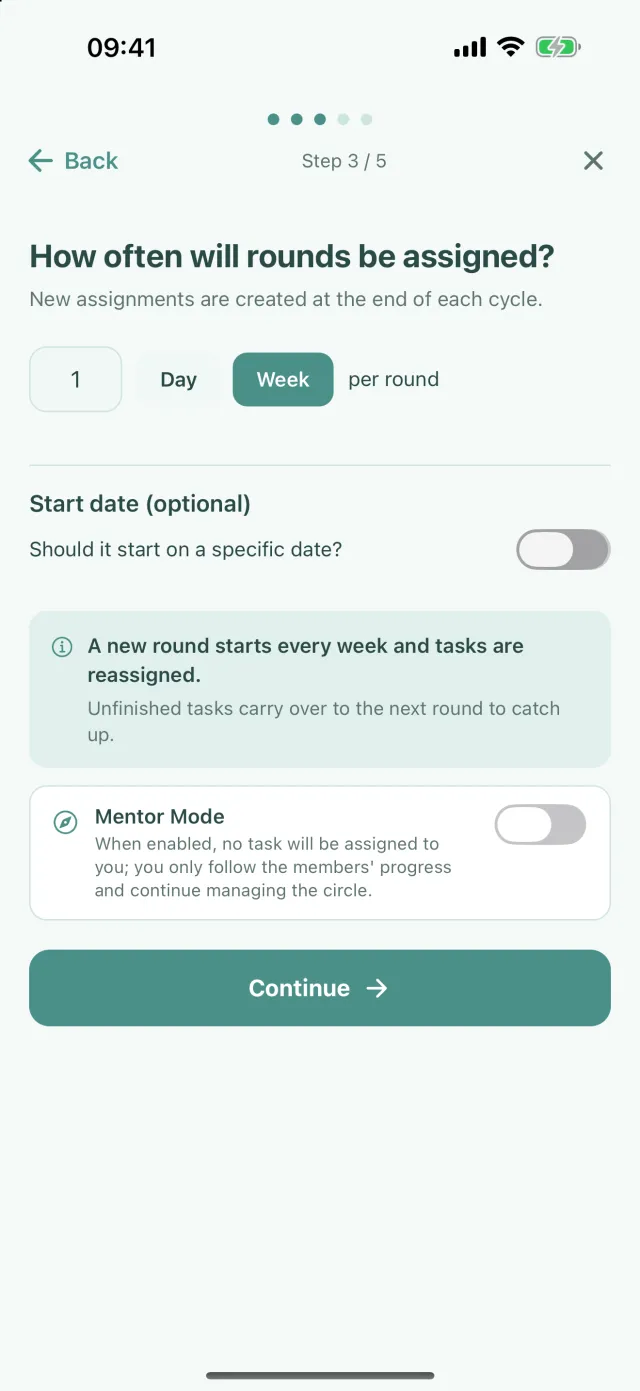
    If you want to run the circle without taking a juz yourself, turn on Mentor Mode on the screen where you choose how often rounds happen. That screen says Step 3 / 5 at the top.

  3. 7

    Name the task and start it

    Type a name in the Task name box, for example “Family Khatm”. The preview below shows who starts with which juz. Tap Start Task. Everyone's juz lands on their own screen straight away.

    You don't have to work out who reads what: the app shares the juz out in the order of the circle.

    Auto-advance rounds is on by default: when a round's time is up, the next round starts on its own. Rounds change at midnight in your time zone, and the screen tells you so with a line such as “Rounds follow London time.”

How the rounds move on

When a round ends, the next juz are handed out on their own and the khatam carries on from where it stopped. In a circle of five, juz 1–5 are read in the first week and juz 6–10 in the second. At the end of the sixth week the khatam is complete, and the circle carries on with a new khatam in the same way.

A juz that was not read does not disappear: in the next round it stays with the same person, marked Carried over. You do not have to write a new list every week.

3
Everyone in the circle

Read your juz

Everyone who joins the circle reads their own share, in their own place and at their own time.

  1. 8

    Tap the notification or the card on Home

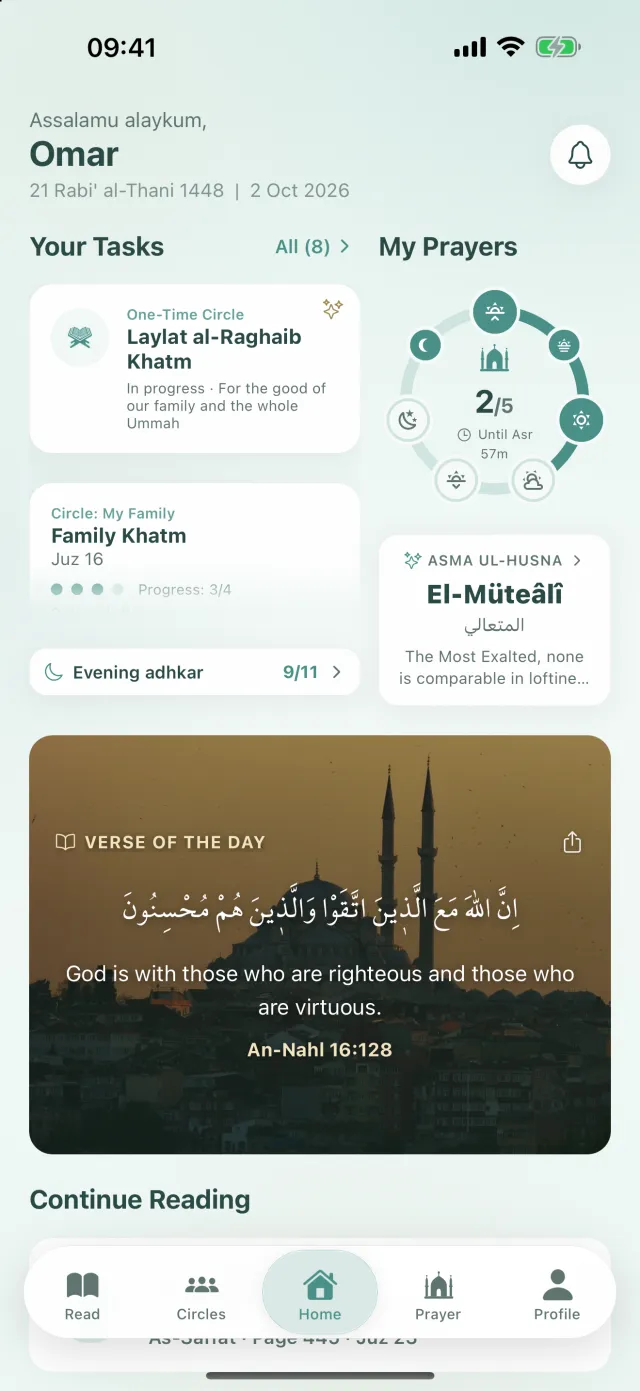
    When a new round starts, you get a notification on your phone; tap it and your task screen opens. If you opened the app yourself, tap the khatam card under Your Tasks in the Home tab: it shows the circle's name, your juz and the days left.

    If a round starts at night, its notification does not disturb you at night. It arrives in the morning.

  2. 9

    Start Reading, then Mark as read

    Tap Start Reading. The Quran opens at the first page of your share, and the thin line at the top shows how much you have read. On the last page, the Mark as read button appears at the bottom. Tap it, then tap Mark as read once more in the window that opens. Your share is complete and you are back on the task screen.

    The task card turns into the Alhamdulillah card. There you can see how many people in the circle have finished.

    No need to find your mushaf: your pages open right in the app.

    If you read from a printed mushaf, tap the COMPLETE button on the task screen. If you have not marked the parts you read, answer Yes to the question that appears.

4
Everyone in the circle

If someone cannot keep up

Not every week goes the same way. Someone who cannot finish their share does not hold up the circle; the others help.

Ask for help

Tap the Ask for Help button under the task card. Type how many pages you will read yourself and tap Ask for Help in the window. The remaining pages show up for the others in the Waiting for Help list.

Help someone

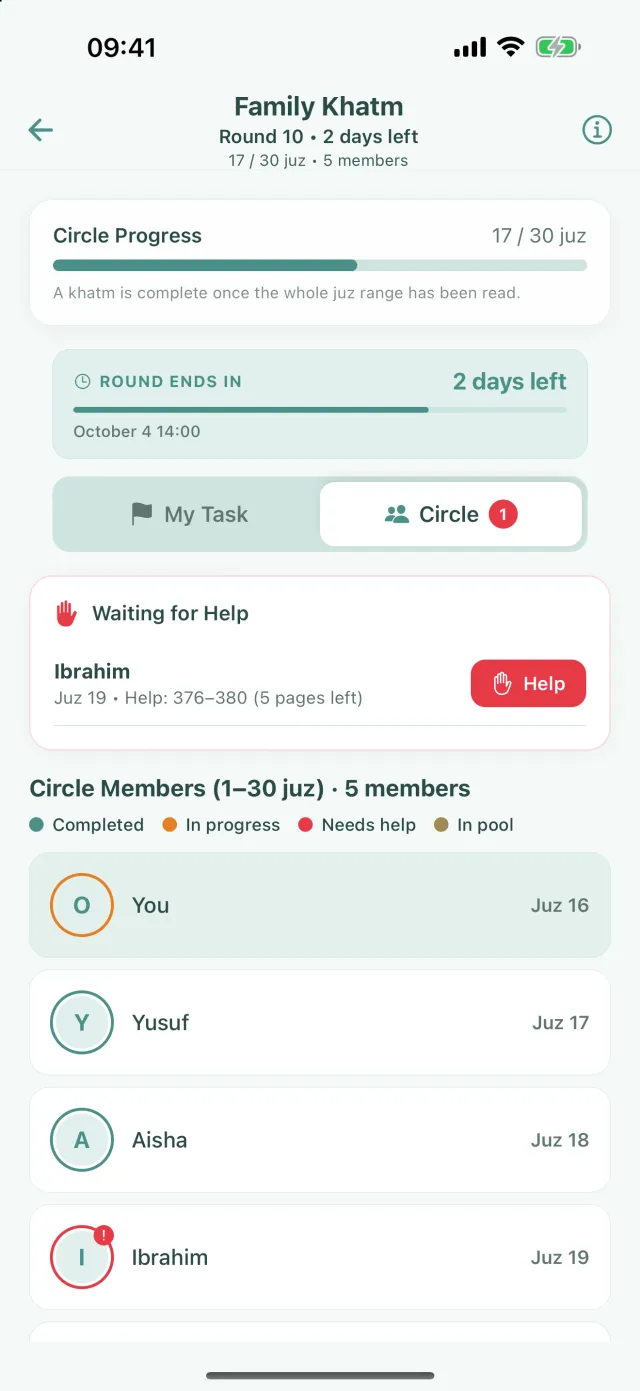
On the Circle tab of the task screen, you see who is waiting for help. Tap the Help button and choose how much you will take in the window that opens. The pages you take land on your own screen.

If you have to give up your share completely, you can release it to the pool with the Excuse button; anyone who wants to can take it from there. This step cannot be undone.

What it looks like in the app

These screenshots are from the app itself.

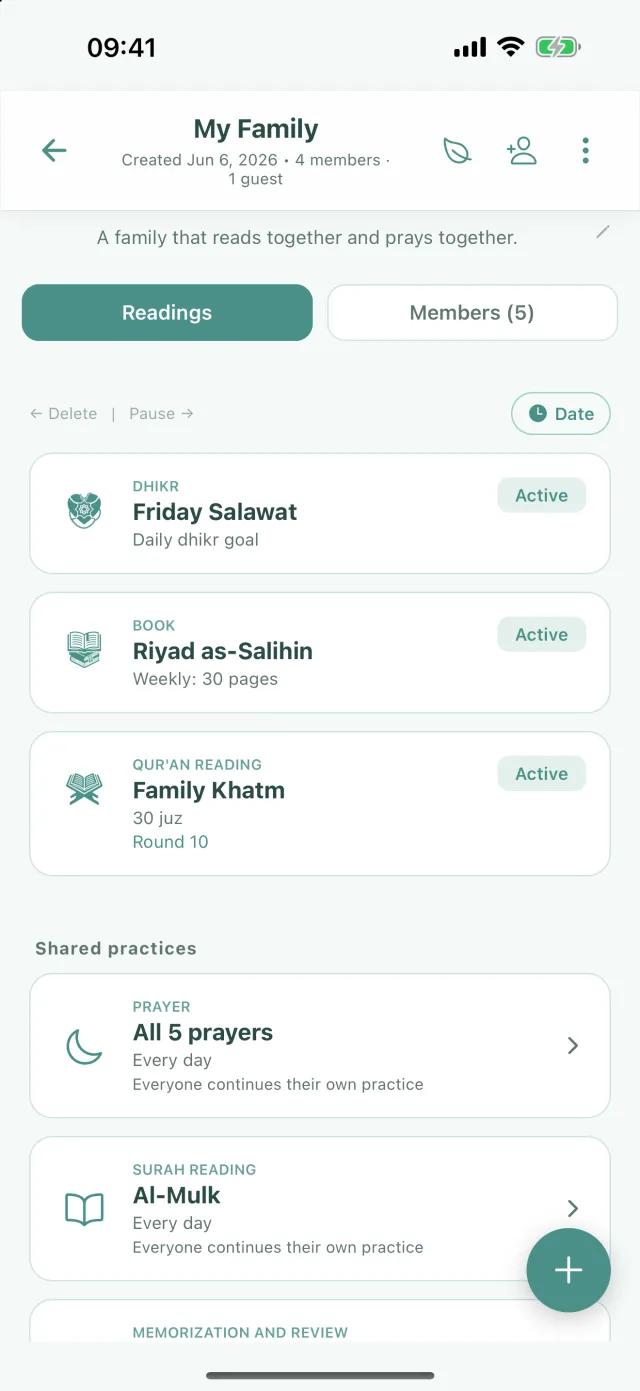
  • Circle screen: tasks in the Readings tab and the round + button at the bottom right
    Circle screen: tasks and the + button at the bottom right
  • Goal setup screen: How often will rounds be assigned, with 1 Week selected
    Choosing how often rounds happen
  • Home screen: circle tasks in the Your Tasks section
    Home: your tasks
  • Khatam screen, Circle tab: someone waiting for help and which juz each member is on
    Who is on which juz in the khatam

Frequently asked questions

How is the Quran split, and who reads which juz?

The app shares out the juz in the order of the circle: juz 1 to the first person, juz 2 to the second, and so on. You see this list on the last screen before you start the khatam. In the next round the following juz are handed out in the same order: in a circle of 5, the second round carries on with juz 6–10.

What happens when the week is over?

If Auto-advance rounds is on (it is on by default), the new round starts on its own at midnight in the circle's time zone, and the next juz are handed out. If you turn it off, you start the new round yourself.

What if someone cannot finish their juz?

The unread share is not lost: in the next round it stays with that person, marked Carried over. They can also release part of it to the circle with Ask for Help, or hand all of it to the pool with Excuse; the others take it on with Help or Take.

We already use a WhatsApp group. Do we still need the app?

Keep your group. Share the invite link there; the app keeps the list, tracks who has read and sends the reminders. You do not have to write a new list every week. If you still want a list on paper, use the printable khatam chart.

Can an older relative without the app take part?

In a regular circle, the admin can add someone without the app as a guest; a person who looks after them marks their reading. In a one-time khatam set up with Shared pool, people without the app can take a juz in their browser from the invite link: One-time circle.

Is it free?

Creating a circle, starting a khatam and joining a circle are free. With a free account you can manage one circle of your own at a time; there is no limit on joining other people's circles.

Can a khatam be completed by sharing out the juz?

Scholars have answered this question, and views differ. For guidance that fits your situation, ask a scholar you trust.

Create your circle today

Creating and joining a circle is free. Download the app, create your circle and share the invite link.

DownloadApp Store DownloadGoogle Play