Step-by-step guideNew
How to make a video from Quran verses
In Manevi Halka you turn the verses you choose into a video with recitation and a scene. You pick a reciter or record your own voice, and you choose the format for where you will share it: full screen for stories, post or square for the feed. The video is made on your phone; then you save it or share it wherever you like.
 Manevi Halka
Manevi Halka
One video from start to finish: choose the format, create, share.
In short
- Open the Quran from the Read tab, switch to Listen and tap Create video on the Verse video card. While reading, you can also press and hold a verse and choose Share as video.
- Under Verse range, pick the surah and set the range with First verse and Last verse.
- Under Format, choose what suits the place you will share it: 9:16, 4:5 or 1:1.
- Under Recitation, choose a Reciter, or choose My voice and recite the verses yourself.
- Tap Create video and stay in the app while the video is prepared.
- Send it with Share or keep it with Save to Photos. Everything you make stays in Your videos.
Open the video screen
Verse video lives in the Quran section of the app. There are two ways in; both open the same screen.
-
1
From the Listen tab of the Quran
Tap the Read tab in the bottom bar and open the Quran card. At the bottom of the Quran screen, a capsule holds the Read, Listen, Study and Saved tabs; switch to Listen.
Below the listening scenes, tap Create video on the Verse video card. If you are listening to something, the video starts from the verse being recited; if not, from the first verse of the page where you left off.
9:41Manevi HalkaListenListen from where you left offSurah Al-MulkListenListening scenesVerse videoTurn the verses you choose into a video with their recitation and a scene (9:16, 4:5 or square), and share it anywhere. Made on your device, free.Create videoCreate videoAl-Mulk 1-2FormatSurah Al-Mulk · BasmalaAbout 0:29 · 2 versesبِسْمِ اللَّهِ الرَّحْمَنِ الرَّحِيمِManevi Halka
9:16Full screen4:5Post1:1SquareFor stories, statuses and short videos; fills the whole screen. Verse rangeSurah Al-MulkChangeSceneFirst verse1Last verse2LandscapeInkDomePastelTranslation subtitlesVerse and translationTranslation onlyRecitationReciterMy voiceMishari Rashid al‘AfasyChangeRecord your voiceYour recording · 0:24Record againCreate video -
2
From a verse while reading
While reading the Quran, press and hold the verse you want in your video. Tap Share as video at the bottom of the menu that opens; the video starts from that verse.
While watching a listening scene, the share icon at the top right opens this screen too. The video starts with the scene you are watching and the verse being recited.
9:41Al-MulkCreate videoAl-Mulk 1-1FormatSurah Al-Mulk · BasmalaAbout 0:16 · 1 verseبِسْمِ اللَّهِ الرَّحْمَنِ الرَّحِيمِManevi Halka
9:16Full screen4:5Post1:1SquareFor stories, statuses and short videos; fills the whole screen. Verse rangeSurah Al-MulkChangeSceneFirst verse1Last verse1LandscapeInkDomePastelTranslation subtitlesVerse and translationTranslation onlyRecitationReciterMy voiceMishari Rashid al‘AfasyChangeRecord your voiceYour recording · 0:24Record againCreate videoAl-Mulk · Verse 1ListenSaveNoteCopyShareBookmarkStudy word by wordAdd to my journalShare as videoWith recitation, 9:16 · 4:5 · 1:1
Prepare your video
A preview of the video sits at the top of the screen. When you change an option, the preview quietly replays the first verse, so you see how the video will look before you create it.
-
3
Choose the verse range
Under Verse range, use Change next to the surah name to pick another surah. The minus and plus buttons in First verse and Last verse narrow or widen the range.
Below the preview you see the approximate length and the number of verses, for example “About 0:29 · 2 verses”.
A video can be up to 90 seconds or 30 verses. For a longer passage, make several videos. WhatsApp Status takes videos up to 60 seconds; the screen reminds you when you go past that.
9:41Create videoAl-Mulk 1-2FormatSurah Al-Mulk · BasmalaAbout 0:29 · 2 versesبِسْمِ اللَّهِ الرَّحْمَنِ الرَّحِيمِManevi Halka
9:16Full screen4:5Post1:1SquareFor stories, statuses and short videos; fills the whole screen. Verse rangeSurah Al-MulkChangeSceneFirst verse1Last verse2LandscapeInkDomePastelTranslation subtitlesVerse and translationTranslation onlyRecitationReciterMy voiceMishari Rashid al‘AfasyChangeRecord your voiceYour recording · 0:24Record againCreate videoChoose a surah65At-Talaq12 verses66At-Tahrim12 verses67Al-Mulk30 verses68Al-Qalam52 verses69Al-Haqqah52 verses -
4
Choose the format
Under Format there are three cards. Every new video opens in 9:16:
- 9:16 Full screen: for stories, statuses and short videos; fills the whole screen.
- 4:5 Post: for posts in the Instagram and Facebook feeds.
- 1:1 Square: for a square post; looks right in every feed and chat.
The preview is drawn in the format you choose. In the shorter formats, the text and signature scale down to fit.
9:41Create videoAl-Mulk 1-2FormatSurah Al-Mulk · BasmalaAbout 0:29 · 2 versesبِسْمِ اللَّهِ الرَّحْمَنِ الرَّحِيمِManevi Halka
9:16Full screen4:5Post1:1SquareFor stories, statuses and short videos; fills the whole screen. Verse rangeSurah Al-MulkChangeSceneFirst verse1Last verse2LandscapeInkDomePastelTranslation subtitlesVerse and translationTranslation onlyRecitationReciterMy voiceMishari Rashid al‘AfasyChangeRecord your voiceYour recording · 0:24Record againCreate video -
5
Choose the scene and the translation
Under Scene you choose the look of the video: Landscape, Ink, Dome or Pastel. Just below, you pick the landscape, the colour or the picture.
With Translation subtitles on, the translation appears under the verse. Turn it off and the video shows only the Arabic text.
When you pick a landscape, it downloads to your phone; until it is done, the button at the bottom shows the download percentage. You download a landscape once, then it works offline too.
9:41Create videoAl-Mulk 1-2FormatSurah Al-Mulk · BasmalaAbout 0:29 · 2 versesبِسْمِ اللَّهِ الرَّحْمَنِ الرَّحِيمِManevi Halka
9:16Full screen4:5Post1:1SquareFor stories, statuses and short videos; fills the whole screen. Verse rangeSurah Al-MulkChangeSceneFirst verse1Last verse2LandscapeInkDomePastelTranslation subtitlesVerse and translationTranslation onlyRecitationReciterMy voiceMishari Rashid al‘AfasyChangeRecord your voiceYour recording · 0:24Record againCreate video -
6
Choose the reciter
Under Recitation, with Reciter selected, use Change next to the reciter's name to pick another reciter from the list. The screen opens with the reciter you last listened to; the one you choose here applies to this video only.
9:41Create videoAl-Mulk 1-2FormatSurah Al-Mulk · BasmalaAbout 0:29 · 2 versesبِسْمِ اللَّهِ الرَّحْمَنِ الرَّحِيمِManevi Halka
9:16Full screen4:5Post1:1SquareFor stories, statuses and short videos; fills the whole screen. Verse rangeSurah Al-MulkChangeSceneFirst verse1Last verse2LandscapeInkDomePastelTranslation subtitlesVerse and translationTranslation onlyRecitationReciterMy voiceMishari Rashid al‘AfasyChangeRecord your voiceYour recording · 0:24Record againCreate videoChoose reciterMishari Rashid al‘AfasyMahmoud Khalil Al-HusaryAbdulBaset AbdulSamadMohamed Siddiq al-MinshawiAbu Bakr al-Shatri -
7
Or recite the verses in your own voice
Tap My voice, then the Record your voice row. On the recording screen, the verse to recite is shown in large type.
Tap Start recording and begin reciting. Each time you finish a verse, tap Next verse; on the last verse the button becomes Finish. In the video, the verses change exactly where you recited them. You can listen to your recording and use Record again if you want another take.
The recording stays only on this phone and is used only for this video; it is deleted when you leave the video screen. If you change the verse range, you record again.
9:41Create videoAl-Mulk 1-2FormatSurah Al-Mulk · BasmalaAbout 0:29 · 2 versesبِسْمِ اللَّهِ الرَّحْمَنِ الرَّحِيمِManevi Halka
9:16Full screen4:5Post1:1SquareFor stories, statuses and short videos; fills the whole screen. Verse rangeSurah Al-MulkChangeSceneFirst verse1Last verse2LandscapeInkDomePastelTranslation subtitlesVerse and translationTranslation onlyRecitationReciterMy voiceMishari Rashid al‘AfasyChangeRecord your voiceYour recording · 0:24Record againCreate videoIn your own voiceAl-Mulk 1-2Basmala1/3بِسْمِ اللَّهِ الرَّحْمَنِ الرَّحِيمِWhen you finish each verse, tap “Next verse”. In the video, the verses change right where you read them.The recording stays only on this phone and isn't sent anywhere. It is deleted when you leave the video screen.0:00 Up next: Verse 1Start recording Next verse Start overCreate videoAl-Mulk 1-2FormatSurah Al-Mulk · BasmalaAbout 0:29 · 2 versesبِسْمِ اللَّهِ الرَّحْمَنِ الرَّحِيمِManevi Halka
9:16Full screen4:5Post1:1SquareFor stories, statuses and short videos; fills the whole screen. Verse rangeSurah Al-MulkChangeSceneFirst verse1Last verse2LandscapeInkDomePastelTranslation subtitlesVerse and translationTranslation onlyRecitationReciterMy voiceMishari Rashid al‘AfasyChangeRecord your voiceYour recording · 0:24Record againCreate video
Create, save and share
The video is made on your phone. You decide where it goes: to a chat, to a story or just to your own gallery.
-
8
Create the video
Tap Create video at the bottom of the screen. First the audio of the verses is prepared, then the video; the bar shows how much is left.
Stay in the app while it is being prepared. The screen stays on; if you leave the app, preparation stops and you can start it again.
The reciter's audio comes from the internet. If the audio of these verses is already on your phone, for example because you downloaded the surah for offline listening, the video is prepared offline too.
9:41Create videoAl-Mulk 1-2FormatSurah Al-Mulk · BasmalaAbout 0:29 · 2 versesبِسْمِ اللَّهِ الرَّحْمَنِ الرَّحِيمِManevi Halka
9:16Full screen4:5Post1:1SquareFor posts in the Instagram and Facebook feed. Verse rangeSurah Al-MulkChangeSceneFirst verse1Last verse2LandscapeInkDomePastelTranslation subtitlesVerse and translationTranslation onlyRecitationReciterMy voiceMishari Rashid al‘AfasyChangeRecord your voiceYour recording · 0:24Record againCreate videoSurah Al-Mulk · Basmalaبِسْمِ اللَّهِ الرَّحْمَنِ الرَّحِيمِManevi Halka
Preparing the recitation 4% Stay in the app; the screen stays on. Leaving stops the preparation. CancelYour video is readyAl-Mulk 1-2 · 4:5 · 0:29 · 4.2 MBShare Save to PhotosSurah Al-Mulk · Basmala0:00بِسْمِ اللَّهِ الرَّحْمَنِ الرَّحِيمِManevi Halka
New videoYour videosSaved to Photos -
9
Share or save
On the Your video is ready screen the video plays with its sound. Share opens your phone's share sheet, so you can send it to WhatsApp, Instagram or any app you like.
Save to Photos adds the video to Photos. On Android this button is called Save to gallery.
Every video carries a small Manevi Halka signature, the reciter's name and a source line at the bottom. A video in your own voice shows no reciter name.
9:41Your video is readyAl-Mulk 1-2 · 4:5 · 0:29 · 4.2 MBShare Save to PhotosSurah Al-Mulk · Basmala0:00بِسْمِ اللَّهِ الرَّحْمَنِ الرَّحِيمِManevi Halka
New videoYour videosSaved to PhotosAl-Mulk 1-2MP4 · 4.2 MBWhatsAppMessagesMailTelegram -
10
Go back to your videos
Every video you make goes into Your videos. You reach the list from the button on the Your video is ready screen, from the film icon at the top right of the video screen, or from the Videos section of the Saved tab in the Quran. Each row has share, save and delete buttons; tap the thumbnail to play the video.
Videos are stored on this phone and are not part of your backup; the system may remove them when space runs low. Save the ones you want to keep to Photos or your gallery.
9:41Your video is readyAl-Mulk 1-2 · 4:5 · 0:29 · 4.2 MBShare Save to PhotosSurah Al-Mulk · Basmala0:00بِسْمِ اللَّهِ الرَّحْمَنِ الرَّحِيمِManevi Halka
New videoYour videosSaved to PhotosYour videosVideos are kept on this device and aren't backed up; the system may remove them when space runs low. Save the ones you want to keep to Photos or your gallery.Al-Mulk 1-2 Landscape · 4:5 · 0:29 · 4.2 MB · todayShareYa-Sin 1-5 Ink · 9:16 · 0:52 · 6.8 MB · todayShare
What it looks like in the app
These are screenshots from the app itself: the same verses in three formats.
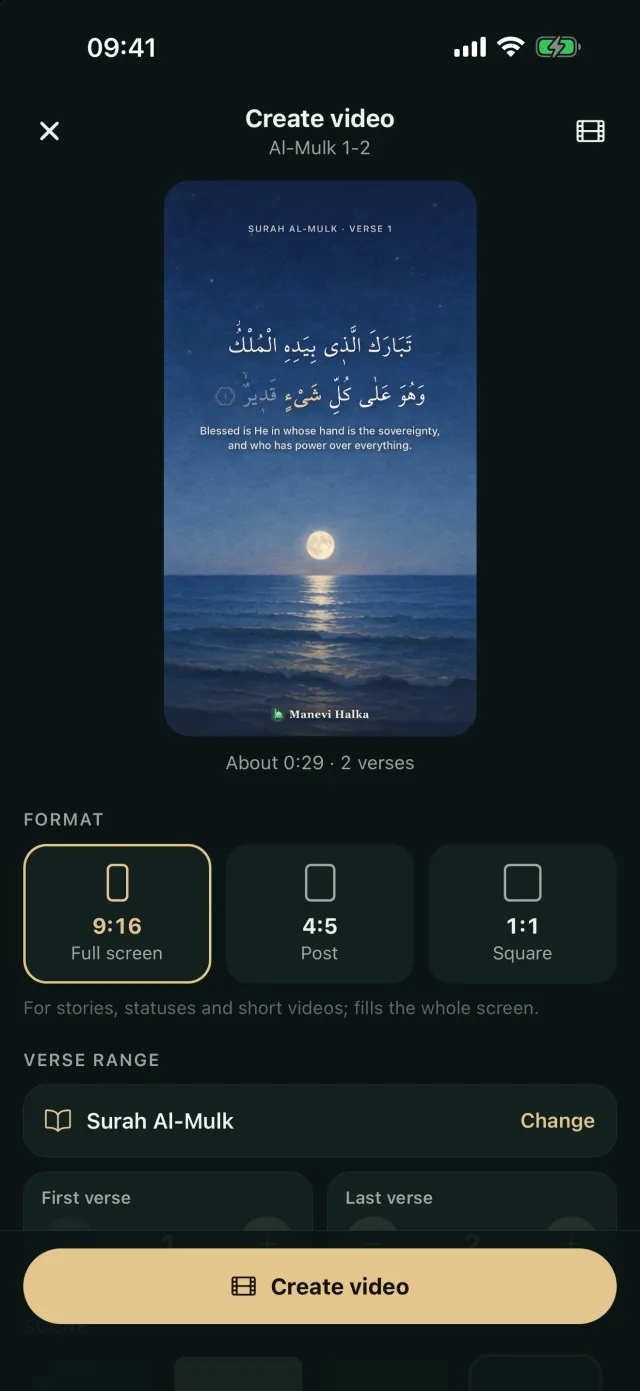
9:16 Full screen 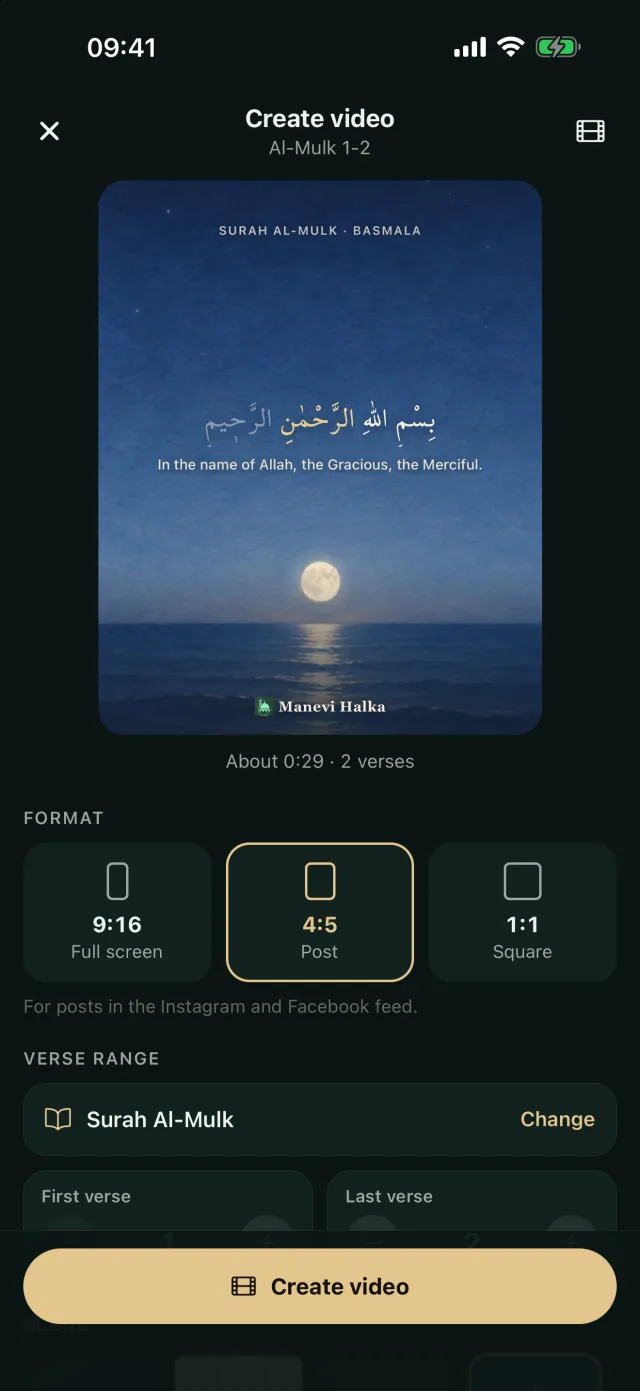
4:5 Post 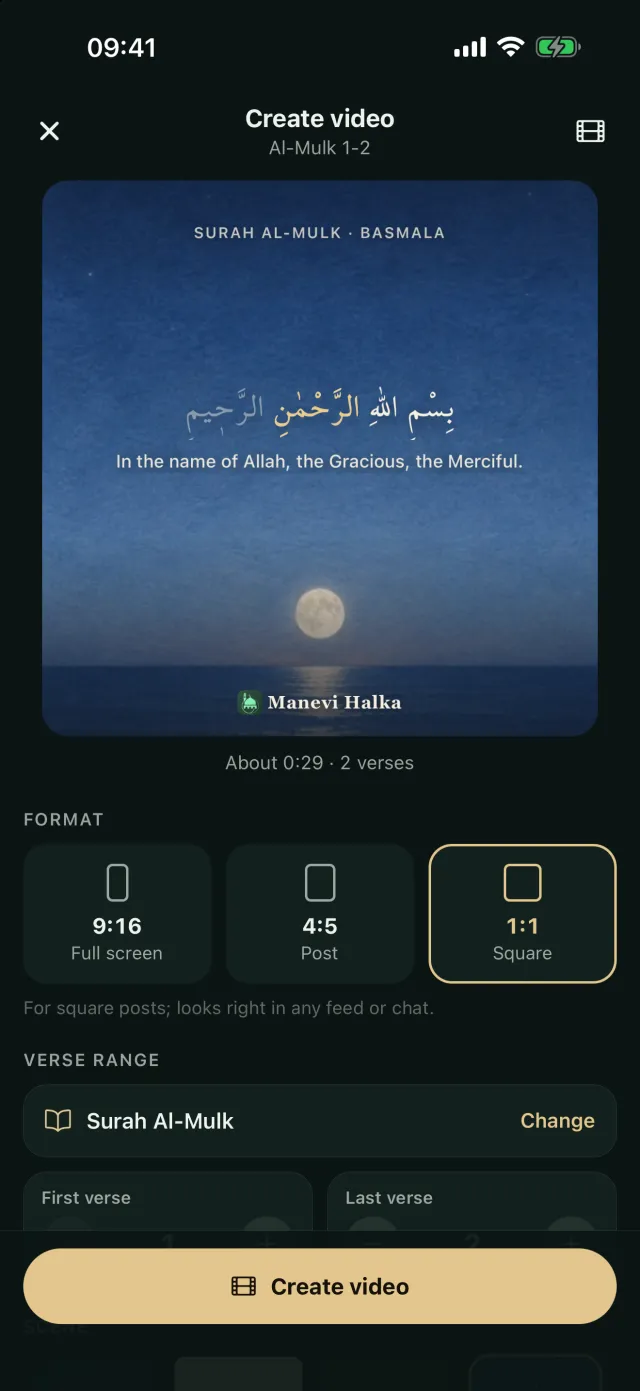
1:1 Square
Frequently asked questions
Is making a verse video free?
Creating, saving and sharing videos is free; only some landscapes, domes and pictures are part of Premium.
How long can a video be?
A video can be up to 90 seconds or 30 verses. For a longer passage, make several videos. WhatsApp Status takes videos up to 60 seconds; the screen reminds you if you go past that.
Where does my own recitation go?
The recording stays only on this phone and is used only for that video. It is deleted when you leave the video screen; the video you made stays in Your videos.
What is written at the bottom of the video?
A small Manevi Halka signature, the reciter's name and a source line (Quran data provided by Quran.Foundation). A video in your own voice shows no reciter name. On every verse, the surah name and verse number appear at the top of the scene.
How long do my videos stay on the phone?
Videos are stored on this phone and are not part of your backup; the system may remove them when space runs low. Save the ones you want to keep to Photos, or to your gallery on Android. Copies you shared stay wherever you sent them.
Does it work on Android too?
Yes. Verse video works on iPhone and on Android 8.0 and later. The save to gallery button appears on Android 10 and later; on older versions you send the video with Share.
Make your first verse video
Download Manevi Halka for free, open Listen in the Quran section and create your video.