My past duas
Tap a dua and choose Move to past. If you like, write a short note, for example “Alhamdulillah, my mother has recovered.” The dua leaves its section and stays under My past duas with its date; you can bring it back whenever you want.
 Manevi Halka
Get the appDownload
Step-by-step guideNew
My dua journal is where you write your own duas and your duas for the people you love. You write them in sections, add a verse, a ready dua or one of the Divine Names, set a reminder for your reading time and share your journal as a PDF.
Open your journal from Duas, write a dua in My loved ones, then read it.
My dua journal opens from inside the Duas screen; it is not a separate tab.
Tap the Read tab in the bar at the bottom and open the Duas card. Below the search box and the What are you going through? ring is the My dua journal row. Tap it.
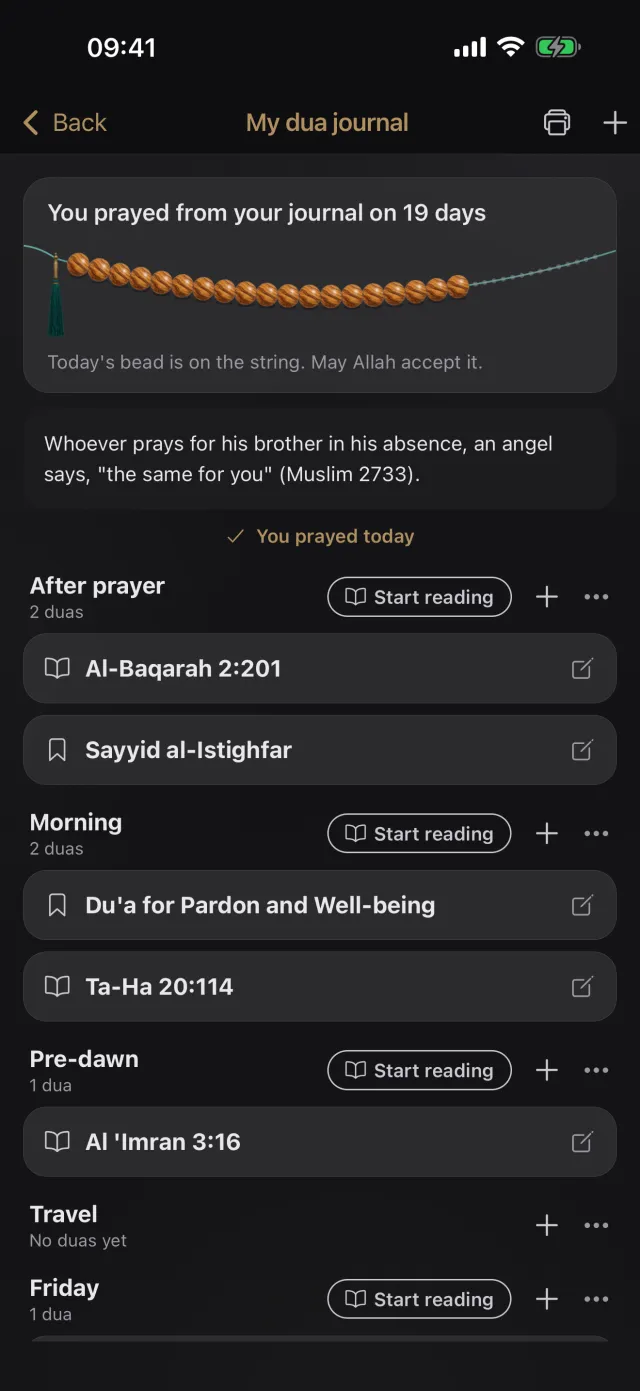
Your journal comes with ready sections: After prayer, Morning, Pre-dawn, Travel, Friday, Laylat al-Qadr and My loved ones. The first time, they are all empty.
The journal also meets you at prayer times: when you mark a prayer in My Prayers or finish the prayer tasbihat, a row opens the After prayer section. Marking tahajjud opens Pre-dawn. If the section is empty, the row does not appear.
You can write a dua in your own words or bring a ready text from the app into your journal.
Tap the + at the top right or the + next to a section. Fill in the window that opens and tap Save:
Tap a dua to edit it: change its section, move it up or down, or share it. Press and hold to delete it; the app asks first, and right after deleting you can bring it back with Undo.
You do not have to type a ready text. When you open a dua on the Duas screen, tap Add to my journal among the buttons below it. The same option is in the window that opens when you tap a verse in the Qur'an reader, and in the list of the Divine Names (Asma al-Husna).
The app asks Which section?; choose the section. The text is added to your journal with its source.
The same text is not added to the same section twice; if it is already there, that section's row says In my journal.
The journal is as much for praying as for writing: you read a section from start to end and set a reminder for your reading time.
Next to a section with duas in it is the Start reading button. Tap it: the section's duas open one below the other in large text. Verses and ready duas also show their Arabic, meaning and source.
The A buttons at the bottom make the text smaller or larger; Scroll scrolls the page at your pace. At the end, tap I prayed today.
Each day you pray, a bead is added to the string of prayer beads at the top of your journal. The journal also remembers your place: when you open a section again, it starts from the dua you read last.
At the end of My loved ones, the names of the people who entrusted you with their prayers are shown as well; when you tap I prayed today, they are marked too.
Tap the three dots next to a section. In the window that opens you can rename it, move it up or down, delete it or set a Reminder.
Turn the reminder on, choose Every day or certain days, set the time and tap Save. The section then shows reminder on. The notification only says “The duas you set aside for today are waiting for you.”
If you delete a section, its duas move to My other duas. To open your own section, tap New section at the bottom of the list.
Tap the print icon at the top right. In the PDF and print window, choose Whole journal or a single section, then tap Share as PDF or Print. The page is made in large text, on your phone.
If some duas have a “for whom” name, the Include names ("for whom") switch appears. It starts off; names go into the PDF only if you turn it on.
The journal has two more corners: a memory of the duas that were answered, and the list of people who asked you to pray for them.
Tap a dua and choose Move to past. If you like, write a short note, for example “Alhamdulillah, my mother has recovered.” The dua leaves its section and stays under My past duas with its date; you can bring it back whenever you want.
When someone asks you to pray for them, write their name in the Prayers entrusted to me list. It opens from the bottom of the journal; you are reminded when you finish your wird and at the dua moment of your tasbihat.
This screenshot comes from the app itself.
Your journal stays on this phone, and only you see it. To share a dua, tap it and choose Share; you can send the whole journal as a PDF.
The journal is kept only on this phone and does not sync with your account. Before you change phones, send it to yourself with Share as PDF and keep it.
You can write up to 300 duas and open up to 30 sections.
When adding a dua, tap Add Arabic, transliteration and meaning; you write the Arabic, the transliteration and the meaning in separate boxes. For verses and the ready duas in the app you do not need to type anything: add them with Add to my journal.
Yes. If you plant a dua intention in the Garden of Intentions, the days you pray from your journal and the days you mark that you prayed for those who entrusted you with their prayers are counted. Details: Garden of Intentions.
All features of My dua journal are free.
Download Manevi Halka for free and open My dua journal from Duas on the Read screen.